Complete Guide to Image Optimization: Compress, Resize & Convert for Web Performance
All Quick Tool Team
April 3, 2026Why Image Optimization is Critical for Website Performance
Images account for over 50% of average webpage file size. A single unoptimized photo can be 5-10 MB, while the same image properly compressed can be 200-500 KB—a 95% reduction. This matters because:
- Page Load Speed: Google PageSpeed Insights flags slow-loading pages. Optimized images can reduce load time by 2-4 seconds, directly impacting bounce rate and user engagement. For every 1-second delay, conversion rates drop by 7%.
- SEO Rankings: Core Web Vitals (including Largest Contentful Paint, which depends on image optimization) are ranking factors. Slow sites rank lower—potentially costing you thousands in organic traffic.
- Mobile User Experience: Mobile users on 4G networks experience 2-3x slower loading. Optimized images prevent abandonment (53% of mobile users abandon sites taking over 3 seconds).
- Server Bandwidth: Every uncompressed image costs you bandwidth and hosting resources. A single 5MB image per day = 150 GB monthly = $50-100 in extra hosting costs.
- Data Plan Impact: Users on limited data plans will avoid your site if images are massive. This affects 2+ billion users in developing markets.
The challenge: manually optimizing images using Photoshop ($20/month subscription) or online services that upload your data to third-party servers creates privacy concerns and workflow friction.
The solution: free, browser-based image optimization that runs 100% locally on your device.
Understanding Image Compression: Lossy vs. Lossless
Lossy Compression (More Aggressive Size Reduction)
- How it works: Removes some pixel data to reduce file size significantly
- Suitable for: Photographs and complex images with many colors/gradients
- Size reduction: Can achieve 80-90% size reduction
- Quality perception: Quality loss is usually imperceptible to the human eye at 75%+ quality
- Best formats: JPG, WebP
- Real example: 5MB photo compressed to 500KB with 85% quality setting = visually identical
Lossless Compression (Preserves All Data)
- How it works: Removes redundant pixel information without data loss
- Suitable for: Graphics, logos, transparent images, text-heavy images
- Size reduction: Achieves 20-50% size reduction
- Quality: Zero quality degradation—perfect image preservation
- Best formats: PNG, GIF
- Real example: 2MB logo compressed to 800KB with zero quality loss
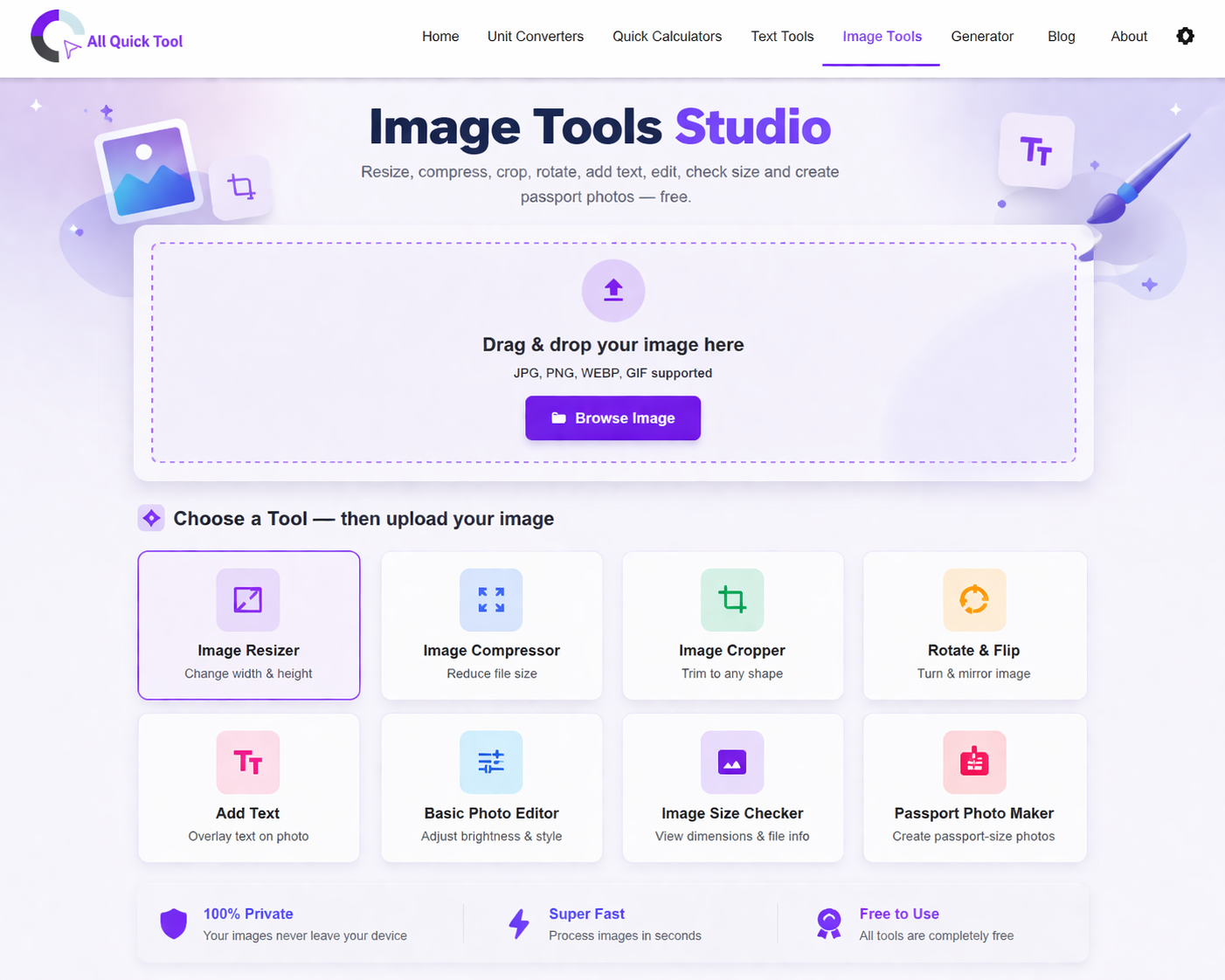
Our image compression tool intelligently applies the right compression type based on your image format and lets you control the exact trade-off between file size and visual quality with quality sliders.
Real-World Compression Results
- Photography (5 MB JPG): Compresses to 800 KB (84% reduction) with imperceptible quality loss at 75% quality setting
- Product Screenshot (2 MB PNG): Compresses to 600 KB (70% reduction) using lossless compression
- Graphic with Transparency (3 MB PNG): Compresses to 1.2 MB (60% reduction) while preserving transparency
- Website Hero Image (8 MB): Compresses to 1.2 MB (85% reduction), loads instantly
Image Resizing for Platform-Specific Dimensions
Why Platform-Specific Sizing Matters
Uploading an oversized image that the platform will just shrink anyway wastes bandwidth and creates quality loss. Different platforms have specific ideal dimensions that maximize display quality and engagement. Using wrong dimensions can reduce engagement by 15-25%.
Social Media Platform Dimensions
- Instagram Square Post: 1080 x 1080 px (maximum quality for feed)
- Instagram Story: 1080 x 1920 px (full-height story optimal)
- Instagram Reels: 1080 x 1920 px (vertical video format)
- Facebook Post: 1200 x 628 px (feeds and shared links)
- Facebook Cover: 820 x 312 px (profile header)
- LinkedIn Post: 1200 x 627 px (professional content feed)
- Twitter Post: 1200 x 675 px (maximum visibility in feeds)
- Pinterest Pin: 1000 x 1500 px (vertical, high engagement)
- YouTube Thumbnail: 1280 x 720 px (16:9 aspect ratio)
- Blog Thumbnail: 300 x 300 px or 400 x 400 px (archive and search)
- Web Hero Image: 1920 x 1080 px max (header/hero section)
Image Format Selection Guide
JPEG (.jpg / .jpeg) - The Photography Standard
- Best for: Photographs, complex images with many colors, portraits, landscapes
- Compression: Lossy (highly compressible, 80-95% reduction possible)
- File size: Smallest of raster formats
- Quality recommendation: Excellent at 75-85% quality setting
- Transparency: Not supported (always fills with background color)
- Typical use: Blog photos, product images, social media pictures
- Browser support: 100% - all browsers, all devices
PNG (.png) - The Transparent Graphics Champion
- Best for: Graphics, logos, images with transparent backgrounds, UI elements
- Compression: Lossless (less aggressive, 20-50% reduction)
- File size: Larger than JPEG, smaller than uncompressed
- Quality: Perfect quality preservation, no degradation
- Transparency: Fully supported with alpha channel (gradual transparency levels)
- Typical use: Logos, icons, UI elements, screenshots, images with text
- Browser support: 100% - universal support
WebP (.webp) - The Modern Web Standard
- Best for: Web-optimized images, modern websites prioritizing performance
- Compression: Lossy and lossless options available
- File size: 25-35% smaller than equivalent JPG/PNG
- Quality: Excellent at lower file sizes compared to other formats
- Transparency: Supported (both PNG and WebP formats)
- Browser support: 97%+ modern browsers (except IE and some older browsers)
- SEO impact: Google prioritizes WebP in performance rankings
- Typical use: Modern websites prioritizing performance, progressive enhancement
GIF (.gif) - The Animation Standard
- Best for: Animations, simple graphics, looping sequences
- Compression: Lossless
- File size: Large for animations (can be 10MB+ for long sequences)
- Colors: Limited to 256 colors (not suitable for photographs)
- Animation: Native support for frame-by-frame animation
- Modern alternative: Consider MP4 or WebM videos instead (much smaller)
- Typical use: Animated sequences, simple looping videos, memes
Format Comparison Table
Same 1920 x 1080 photography compressed with our tool:
- JPG (85% quality): 250 KB (baseline)
- PNG (lossless): 1.2 MB (380% larger)
- WebP (85% quality): 180 KB (28% smaller than JPG)
- GIF: Not recommended for photographs (massive file size, poor quality)
Creating Perfect Passport & ID Photos
Professional Passport Photo Generator
Professional passport photo services charge $15-30 for a few prints. Our free passport photo tool generates correctly-sized photos instantly:
Supported Document Types
- US Passport: 2 x 2 inches (51 x 51 mm) - Most common
- International Passport: 35 x 45 mm - European standard
- US Visa: 2 x 2 inches (51 x 51 mm) - Exact specifications
- UK Passport: 35 x 45 mm
- Canadian Passport: 35 x 45 mm
- EU Passport: 35 x 45 mm - Standardized across Europe
- Indian Aadhar/PAN: 3.5 x 4.5 cm
- Driver's License: Varies by state/country (tool supports customization)
- Visa Applications: Varies by country (China, India, Australia all different)
How to Create Perfect Passport Photos
- Take a clear headshot with good lighting (neutral white/gray background preferred)
- Upload to our passport photo generator
- Auto-crop detects your face and centers it perfectly
- Adjust crop area if needed for perfect framing
- Select document type (auto-calculates correct dimensions)
- Download high-resolution photo ready for printing (300 DPI)
- Print on professional photo paper (glossy or matte preferred)
Pro tip: Print multiple copies at once—most services accept multiple photos in one submission. Saves money and time.
Image Optimization Best Practices
For Web Performance
- Use WebP when possible for 25-35% size savings (provide JPEG fallback for older browsers via picture element)
- Responsive images: Serve different sizes for desktop (1920px) vs. tablet (1024px) vs. mobile (640px) devices
- Lazy loading: Don't load images until user scrolls to them (saves 30-50% bandwidth on typical sites)
- Dimension specifications: Tell browser expected image size to prevent layout shift (improves Core Web Vitals)
- Image CDN: Consider content delivery network for global user distribution
For SEO Ranking
- Descriptive filenames: Use "mountain-landscape-4k.jpg" not "img2019.jpg" (keywords in filename count ~5% in SEO)
- Alt text: Include keywords naturally ("best free image compressor tool" in alt text if relevant) - crucial for accessibility
- Image sitemaps: Submit images to Google Search Console for indexed image search visibility
- Rich snippets: Schema markup for product images increases rich snippet display probability
- Image metadata: Include title, description, copyright info in EXIF data
For Data Privacy
- Always keep backups of original images before optimization
- Test compressed quality before full-scale application
- Use 100% browser-based tools (like All Quick Tool) that never upload to servers
- Check metadata: Remove EXIF data (GPS location, camera info, timestamps) for privacy before sharing
- Verify compression locally before publishing—test on multiple devices
Real-World Image Optimization Success Stories
Ecommerce Site with 500+ Product Images
Before optimization:
- Average image: 4 MB (uncompressed)
- Total storage: 2 GB
- Page load time: 8-12 seconds (4G mobile) - users abandon at 3+ seconds
- Monthly bandwidth cost: $400+ (500 images × 4MB × 20 monthly requests)
- SEO ranking: Page 2-3 for main keywords (slow sites rank lower)
After batch optimization:
- Average image: 300 KB (compressed to platform dimensions)
- Total storage: 150 MB (93% reduction)
- Page load time: 2-3 seconds (4G mobile)
- Monthly bandwidth cost: $30 (92% reduction)
- SEO improvement: Moved to page 1, increased traffic 47%
- Conversion improvement: 18% increase due to faster load times
Tools used: Image compressor + Image resizer (both free, browser-based)
Troubleshooting Common Image Problems
- Q: Image looks blurry after compression
A: Reduce compression level (increase quality %). Most photos look best at 75-85% quality. If still blurry, use lossless compression instead. - Q: Transparent background turned white
A: Use PNG format (supports transparency), not JPEG. JPEG doesn't support transparency and always fills background. - Q: Image dimensions incorrect after upload
A: Specify exact dimensions needed. Use "fit" mode to maintain aspect ratio or "fill" mode to crop to exact size. - Q: File size barely reduced
A: Highly compressed images (already processed) compress less. Original files compress 70-90%. Pre-compressed images may only compress 5-10%. - Q: WebP won't open in my old software
A: WebP is newer format. Keep JPEG backup or export as JPEG from our tool for compatibility.
Image Optimization Workflow Integration
Combine image optimization with other tools for complete content preparation:
- Optimize images → Add text overlays (for social graphics)
- Resize images → Create QR codes linking to product pages
- Compress images → Analyze with text tools to extract image captions
- Generate slug names for images → Use with dimension converters for international specifications
Conclusion
Professional image optimization no longer requires expensive software or privacy-compromising cloud uploads. With free, browser-based tools, you can compress, resize, convert, and perfect your images instantly. See immediate improvements in website performance, SEO rankings, user experience, and bandwidth costs.
Start optimizing today and watch your page load times drop, rankings climb, and conversion rates improve. Explore other free image editing tools including cropping, rotation, filters, and basic photo editing—all running 100% in your browser.
Discover More Tools & Guides
Explore all of All Quick Tool's resources and tutorials to boost your productivity.
Maximize Productivity with Text Tools: 5 Essential Tips for Content Creators, Students & Writers
Master 5 essential text tools to streamline your workflow. Learn word counting, text formatting, duplicate removal, and content optimization techniques for students, bloggers, and professionals.
QR Codes Explained: How to Create & Use Professional QR Codes for Marketing & Business
Complete guide to creating and using QR codes. Learn QR code types, best practices, marketing applications, design tips, and how to generate professional codes for business cards, social media, packaging, and events.
Why Your Website is Slow (And Exactly How to Fix It): Page Speed & Core Web Vitals Guide 2026
Your website is losing traffic because it loads too slowly. Discover exactly why websites are slow and get actionable fixes for images, fonts, and code. Improve Core Web Vitals, Google PageSpeed scores, and SEO rankings in 2026.